
Scanner Settings

To modify scanner settings:
-
Click the Scan tab and select Scanner Settings in the Options group.
-
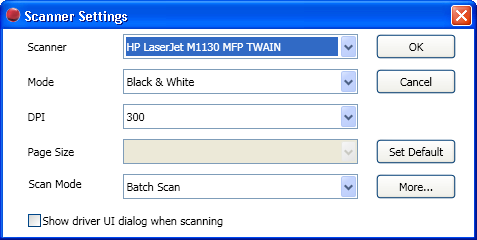
Customise the scanner using the options on the Scanner Settings window.
Scanner Settings Window Options
The Scanner Settings window contains the following options:
| Option | How to Use |
|---|---|
| Scanner |
Select the scanner you will be using or From File to import a tif or PDF. Note: when you select the From File option it disables all scanner related options. |
| Mode |
Select the type of scan e.g. Black & White (recommended for CCH Autofill). |
| DPI |
Select the scan quality by specifying the dots-per-inch e.g. 300 |
| Page Size |
Select the page size that you are scanning e.g. A4 or A5. |
| Scan Mode |
Select Flatbed or Batch Scan. Note: For flatbed scanners Scan Mode only displays the option Flatbed. The available settings depend on the type of scanner installed and may not match the options described |
| Show driver UI dialog when scanning |
Select this check box to display the connected scanner's user interface during scanning, so that you can select specific options that relate to the scanner. |
| Set Default |
Sets the scanner to the recommended options for scanning a document. Mode is set to Black and White and the DPI is set to 300. |
| More |
Allows you to increase or decrease the brightness and contrast of the scan. These can be automatically calibrated. |
| Less |
Click Less to return to the default view. |